
嵌入式开发软件分层
嵌入式分为应用层、内核层、硬件层
开发技术栈
储备知识: Linux系统基础
- 主要内容: 1.Linux 文件系统结构 2.常用的shell系统指令 3.用户与权限管理 4.VIM文本编译 5.共享环境搭建
安装问题
- mac 版本安装虚拟机镜像iso遇到的问题
按照server 镜像版本地址:https://old-releases.ubuntu.com/releases/ 安装最新版本的 不会存在屏幕适配的问题
先安装server版本的ubuntu,然后使用 sudo apt install ubuntu-desktop 桌面版的,执行完之后 使用 sudo reboot 重启
mac arm版本无法使用vmware 3d硬件加速。
Linux基础
文件结构
linux 系统的文件结构:
| 目录名 | 作用与说明 |
|---|---|
/bin | 基础指令库:存放所有用户都能使用的基本命令(如 ls, cp)。 |
/sbin | 特权指令库:存放主要由超级用户(root)使用的系统管理命令(如 reboot, fdisk)。 |
/dev | 设备文件:存放硬件设备文件(如硬盘、键盘、终端),Linux 下硬件也被视为文件。 |
/etc | 配置中心:存放系统及应用程序的配置文件(如网络配置、用户信息)。 |
/home | 用户家目录:普通用户的主目录,通常以用户名命名(如 /home/lucy)。 |
/lib | 共享库文件:存放程序运行所依赖的库文件(类似于 Windows 的 .dll 文件)。 |
/mnt | 挂载点:系统管理员手动挂载文件系统(如外接硬盘、光盘)的临时目录。 |
/proc | 虚拟文件系统:存放内存中的映射信息,包含正在运行的进程和内核信息。 |
/root | 超级用户家目录:系统管理员(root)的专属主目录,与普通用户的 /home 区分开。 |
/usr | 应用程序目录:存放用户安装的应用程序和工具,类似于 Windows 的 Program Files。 |
/var | 动态数据:存放经常变化的文件,如系统日志(/var/log)、邮件和缓存。 |
/tmp | 临时文件:存放程序运行产生的临时文件,系统重启后通常会被清空。 |
/boot | 启动文件:存放系统启动所需的核心文件,如 Linux 内核和引导加载程序。 |
文件命令指令
速查表:https://wangchujiang.com/reference/docs/linux-command.html
- ls -a 显示所有文件
- ls -l 显示文件详细信息 文件类型:d 目录 l 链接(快捷方式) s 套接字链接 b 块设备 i 索引 p 管道 c 字符设备
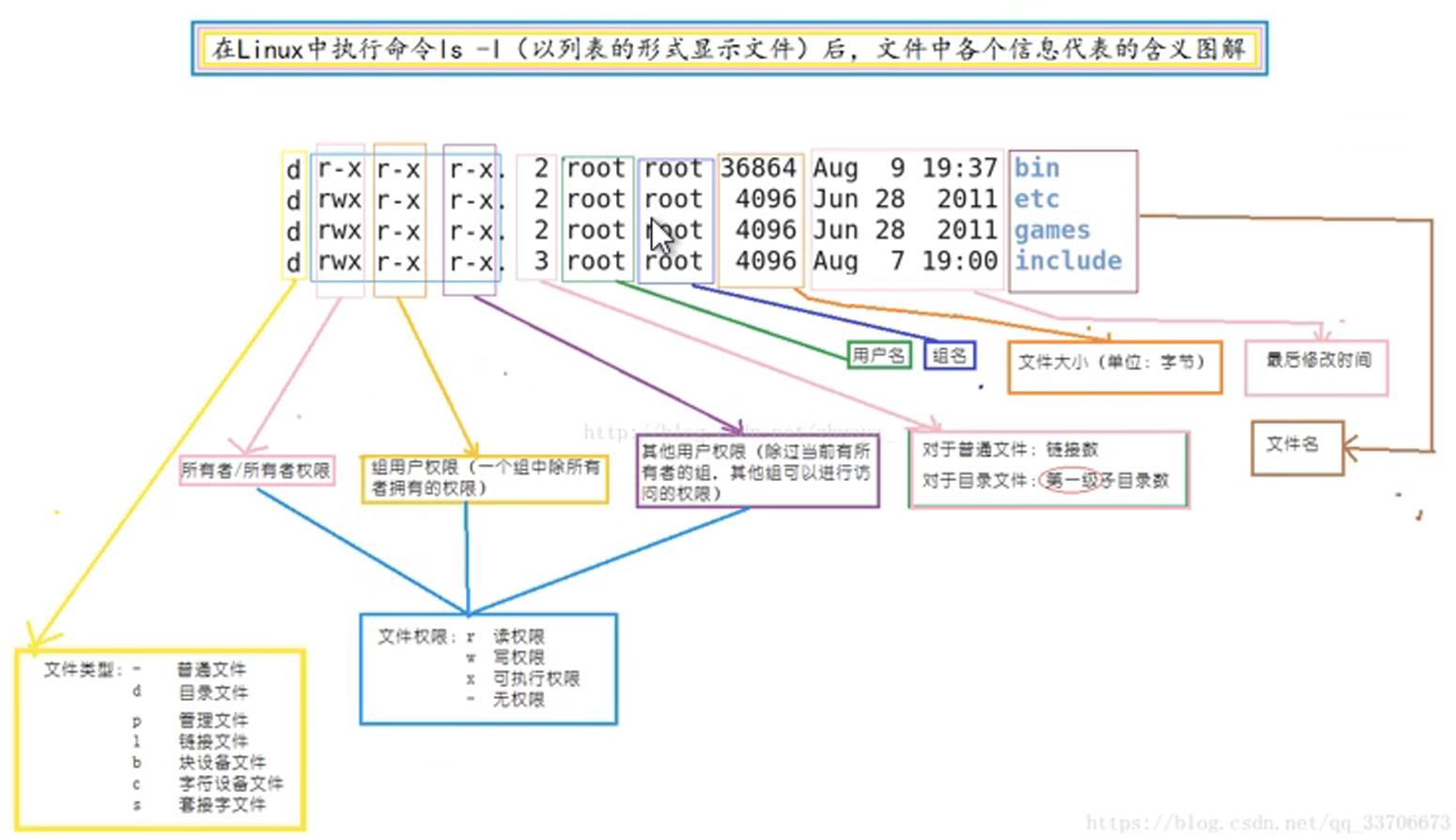
- cd - 退回上一级目录
- mkdir -p 创建目录 递归创建
- touch 创建文件 修改文件时间 创建多个文件使用{} 使用,隔开{1…10}
- rm -rf 删除文件 -i 删除前询问 rmdir -p 删除目录
- cp -R 复制目录 -r 复制 -f 强制覆盖 -i 询问
这里为你整理了 Linux 系统中常用的文件操作、文本处理及 Vim 编辑器命令速查表。
文件操作与文本处理
1. 文件查看 (Read)
用于读取和浏览文件内容。
| 命令 | 选项 | 功能描述 |
|---|---|---|
cat | -n | 连续显示:读取文件内容并显示行号。 |
> | 创建/覆盖:cat > file.txt 创建文件或清空写入。 | |
>> | 追加:cat >> file.txt 在文件末尾追加内容。 | |
more | 分页查看:空格翻页,Enter 下一行,q 退出。 | |
less | 增强分页:支持上下滚动,功能比 more 更强大。 | |
head | -n 10 | 头部显示:显示文件的前 10 行(默认前 10 行)。 |
tail | -n 10 | 尾部显示:显示文件的最后 10 行(常用于看日志)。 |
2. 文件写入 (Write)
快速生成或追加文本内容。
| 命令 | 语法 | 功能描述 |
|---|---|---|
echo | echo "text" > file | 覆盖写入:将文本写入文件,会清空原内容。 |
echo "text" >> file | 追加写入:将文本追加到文件末尾。 |
3. 文件查找 (Search)
在系统中定位文件或过滤内容。
| 命令 | 选项/参数 | 功能描述 |
|---|---|---|
grep | "pattern" file | 文本过滤:在文件中搜索指定的字符串。 |
-n | 显示匹配行的行号。 | |
-c | 统计匹配行的数量。 | |
-i | 忽略大小写进行搜索。 | |
find | . -name "*.txt" | 按名查找:在当前目录及子目录中查找 .txt 文件。 |
-size +10M | 按大小:查找大于 10M 的文件。 | |
-type d/f/l... | 按类型:d(目录) f(文件) l(链接) b(块设备)等。 | |
locate | filename | 快速定位:基于数据库快速查找文件路径(需先 updatedb)。 |
Vim 编辑器命令
核心模式
- 命令模式 (Command):启动 Vim 后的默认状态,用于执行操作指令。
- 插入模式 (Insert):输入
i,a,o等进入,用于输入文本。 - 末行模式 (Last Line):输入
:进入,用于保存、退出或查找替换。
1. 光标移动与跳转
| 快捷键 | 功能描述 |
|---|---|
G | 跳转到文件最后一行。 |
gg | 跳转到文件第一行。 |
vim file +n | 打开文件并直接跳转到第 n 行。 |
0 / ^ | 移动到行首(0为绝对行首,^为第一个非空字符)。 |
$ | 移动到行尾。 |
2. 编辑操作 (命令模式下)
| 快捷键 | 功能描述 |
|---|---|
dd | 删除当前行。 |
:n,nd | 删除从当前行到第 n 行。 |
dG | 删除从当前行到文件末尾。 |
yy | 复制当前行。 |
yG | 复制从当前行到文件末尾。 |
p | 粘贴到光标后。 |
P | 粘贴到光标前。 |
u | 撤销 (Undo) 上一次操作。 |
Ctrl + r | 重做 (Redo)。 |
r | 替换光标所在的一个字符。 |
R | 进入替换模式,连续替换多个字符(直到按 Esc)。 |
3. 查找与替换 (末行模式下)
| 命令 | 功能描述 |
|---|---|
/string | 向下搜索字符串 string。按 n 查找下一个,N 上一个。 |
?string | 向上搜索字符串 string。 |
:s/old/new/g | 在当前行中,将所有 old 替换为 new。 |
:%s/old/new/g | 在整个文件中,将所有 old 替换为 new。 |
:n,ms/old/new/g | 在第 n 行到第 m 行之间,将所有 old 替换为 new。 |
:set nu | 显示行号 (Set Number)。 |
:set nonu | 取消显示行号。 |
4. 保存与退出 (末行模式下)
| 命令 | 功能描述 |
|---|---|
:w | 保存 (Write)。 |
:q | 退出 (Quit)。 |
:wq | 保存并退出。 |
:q! | 强制退出,不保存修改。 |
其他指令
这些命令通常在 Vim 的命令模式(按 Esc 后)下输入。
| 命令 | 功能描述 |
|---|---|
:set nu | 显示行号:在编辑器左侧显示每一行的编号。 |
:set nonu | 取消行号:隐藏行号显示。 |
:.= | 当前行号:显示光标当前所在行的行号。 |
:= | 总行数:显示整个文件的总行数。 |
Ctrl + g | 文件状态:显示文件名、当前行号、总行数及位置百分比。 |
用户和权限管理
1. 用户切换
在不同用户身份之间进行转换。
sudo -i:切换到 root 用户(需要当前用户有 sudo 权限)。exit:退出当前用户,返回到上一个登录的用户。su -:切换用户(通常后接用户名,如su - username,加-会同时加载目标用户的环境变量)。
2. 用户管理
管理系统的登录用户。
| 命令 | 选项 | 功能描述 |
|---|---|---|
| useradd | -m | 添加用户并创建家目录。 |
-d | 指定家目录路径(例如:-d /opt/myuser)。 | |
-g | 指定初始用户组(主组)。 | |
-G | 指定附加用户组(可以加入多个组)。 | |
| userdel | -r | 删除用户,并同时删除该用户的家目录及邮件池。 |
| usermod | -d | 修改用户家目录。 |
-g | 修改用户主组。 | |
-G | 修改用户附加组。 |
3. 密码管理
使用 passwd 命令管理用户密码。
| 选项 | 功能描述 |
|---|---|
| (无选项) | 设置/修改密码:直接运行 passwd 修改当前用户密码,或 passwd 用户名 修改指定用户密码。 |
-l | 锁定密码:禁止用户使用密码登录。 |
-u | 解锁密码:恢复被锁定的用户密码。 |
-d | 删除密码:清空用户密码(使账户无密码)。 |
-e | 强制修改:使密码立即过期,用户下次登录时必须修改密码。 |
4. 用户组管理
管理用户所属的组别。
groupadd:添加一个新的用户组。groupdel:删除一个已存在的用户组。groups:查看用户所属的所有组。groupmod:修改用户组的属性(如组名-n或组ID-g)。chgrp:修改文件或目录的所属组。 -R 递归修改chown: 修改文件或目录的所属用户。chown -R [用户名][:组名] [文件名]chmod: 修改文件或目录的权限。-R 递归修改 chmod -R [权限] [文件名]
文字描述:agu;数字描述,4210
| 权限组合 | 数字计算 | 含义 |
|---|---|---|
rwx | 4+2+1 = 7 | 读、写、执行 |
rw- | 4+2 = 6 | 读、写 |
r-x | 4+1 = 5 | 读、执行 |
r-- | 4 = 4 | 只读 |
--- | 0 = 0 | 无任何权限 |
注:对于新增的的用户,需要重新授权,进行sudo授权在配置文件中添加./etc/sudoers.d/username visudo命令进行用户特权的授权